
You stand at a bench in a park where something meaningful happened and wish you could leave a quiet reminder visible only when you return, without tape, paper or risk of weather damage.
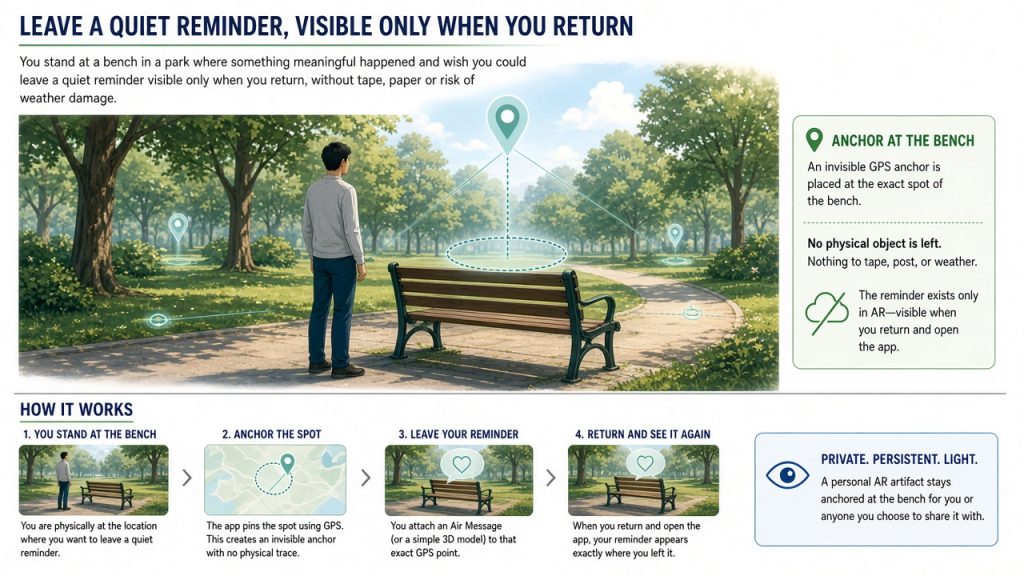
Planet XR lets you do exactly that on an iPhone or iPad by anchoring one short Air Message or basic 3D model to the precise GPS spot so it stays there for you or anyone you choose to share it with. placing persistent 3D art models at any location. The result is one anchored personal AR artifact that appears exactly where you left it whenever the app camera points at that place.
Try this first
Open the free app on any iPhone or iPad running iOS 15 or later. Walk to the spot you have in mind while the camera view is active. Choose the Air Message option or a simple supplied 3D model, type a short line or select the model, then confirm placement. The app uses your device location to keep the item fixed at that GPS coordinate.
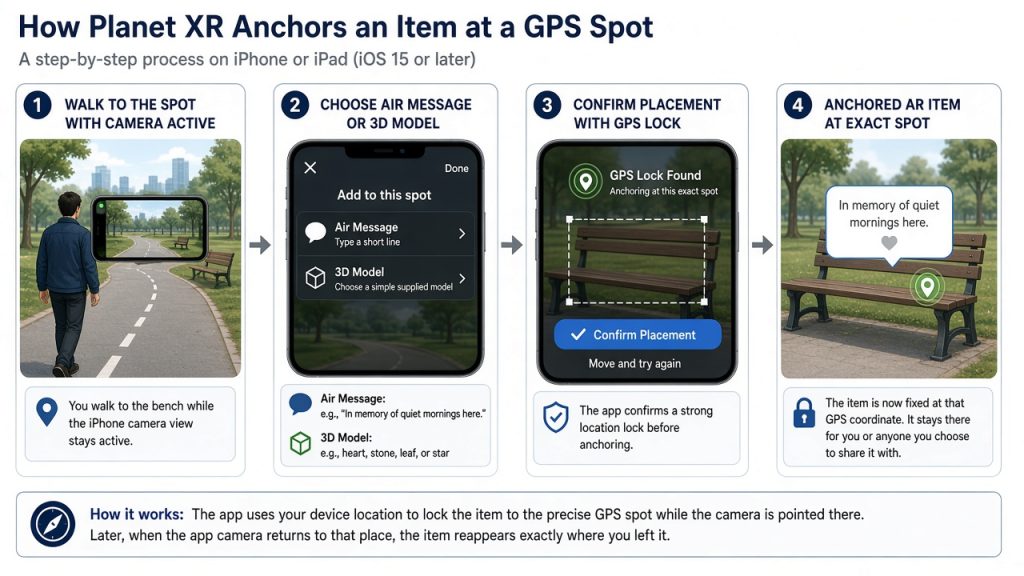
Expect the whole first attempt to take ten to fifteen minutes once you reach the location. The single visible outcome is the anchored item you can reopen and view in place later.
One likely snag and how to recover
The item may fail to lock if the sky view is blocked or the device moves too quickly during anchoring. Step back a few paces, wait for a clearer GPS lock, and try placement again. The same location can be used repeatedly until the anchor holds.
What the anchored item gives you
When you return days or weeks later you simply open the app at the same bench and the message or model appears exactly where you left it. You can view it alone, share the location link inside the app with one friend, or leave it as a private marker only you know how to find.
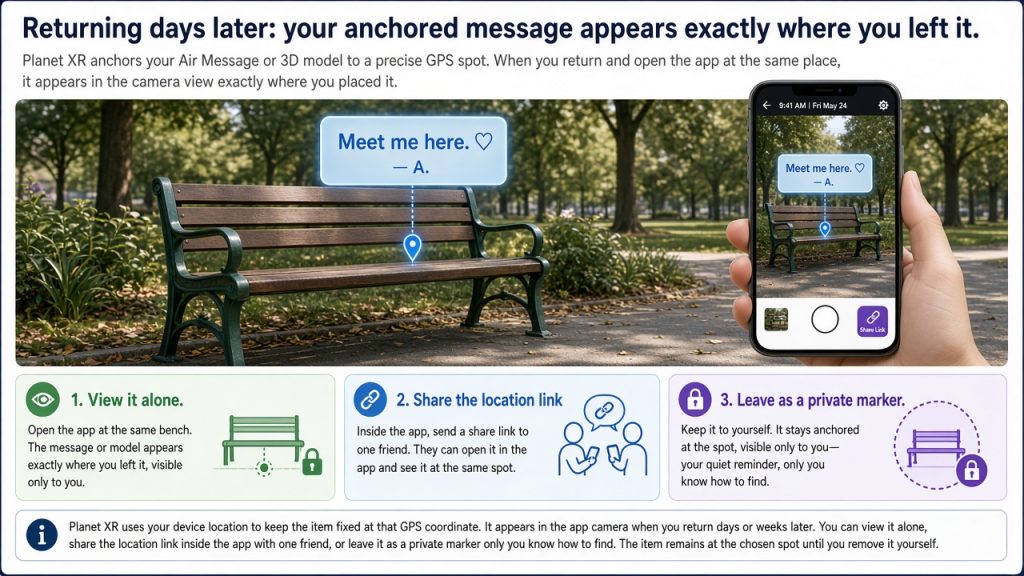
The exercise ends when you have decided whether the placement feels right or needs a small adjustment. Close the app or walk away; the item remains at the chosen spot until you remove it yourself.
Next step worth keeping
After the first placement, try one more at a second nearby spot the same day. Notice which location feels more natural for this kind of mark. That single comparison becomes your own reusable guide for future placements.